
Jump to:
| Type | Icon/Character | Description |
| NOTE
CAUTION
WARNING |  | NOTE: Information that is useful but not critical to the reader.
CAUTION: Tells the reader to proceed with caution.
WARNING: Stronger than CAUTION; means "don't do this" or that this step could be irreversible, e.g., result in permanent data loss. |
| TIP |
| Useful tips that provide additional information. |
| Procedure | 1. 2. 3. | Procedures are numbered steps to perform an action, where the order of the steps is relevant. |
| Result of procedure/action | ⇒ | Indicates the result of an action//procedure. |
| Lists | • • | Used for listings and items where the order of steps is irrelevant. |

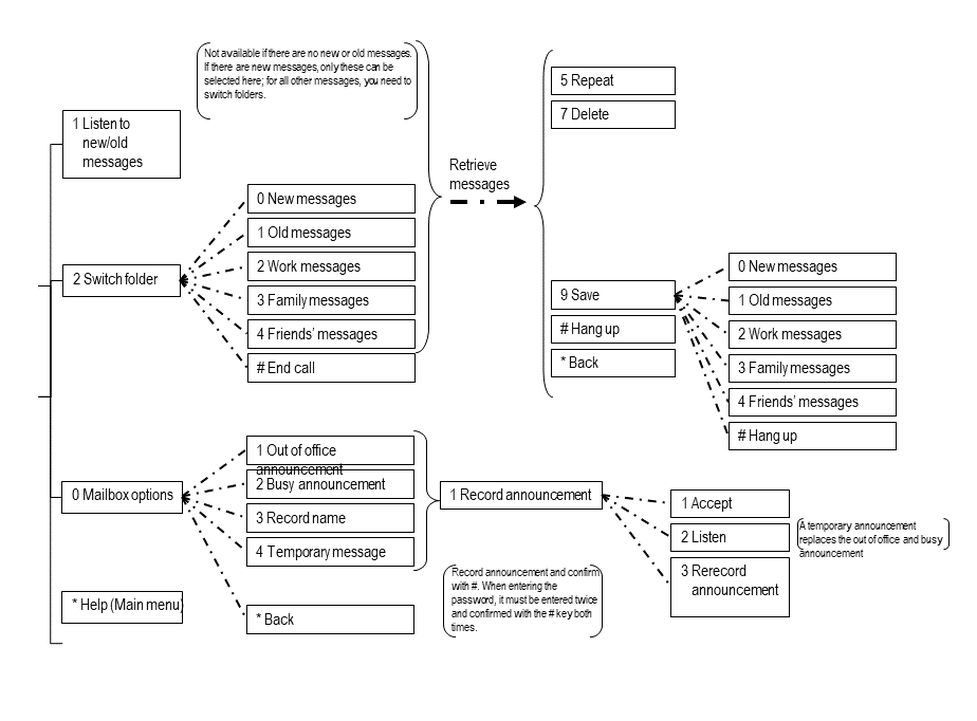
The record time for a voice mail message amounts to a max. of 180 seconds.
A maximum of 100 messages can be saved per voice mail.
When this limit is reached the user will be notified by e-mail the mailbox is full. (Requirement: an e-mail address must be specified under "voice mail")
When this limit is reached the caller will be notified: "This mailbox is full and can not accept new messages.".
Please note that voice mail messages will be saved for a period of 30 days and will then be deleted.
No content available.
When accessing the voice mail system for the first time, you should also set up your personal voice mail:
1.Press the Retrieve key on the snom telephone or the “Voicemail” softkey on the Mitel or dial the star code *791, to access the voice mail system’s voice menu.
2.Enter your voice mail password. You can find this in the extension dialogue on the service site under voice mail.
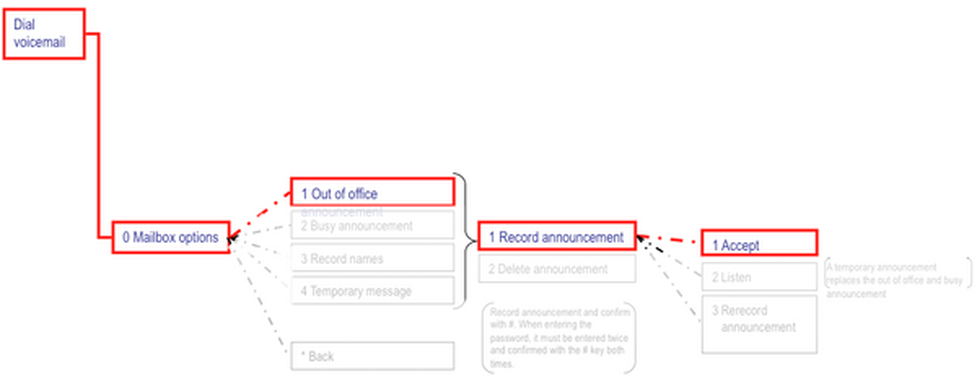
3.Then dial “0 Mailbox Options” to set up your voice mailbox
4.Now, press “1” to record a message in the event you are unavailable.
5.Now, record your message and press “#” to end the recording.
6.Press “1” to accept the recording, “2” to replay the recording, and “3” to rerecord.
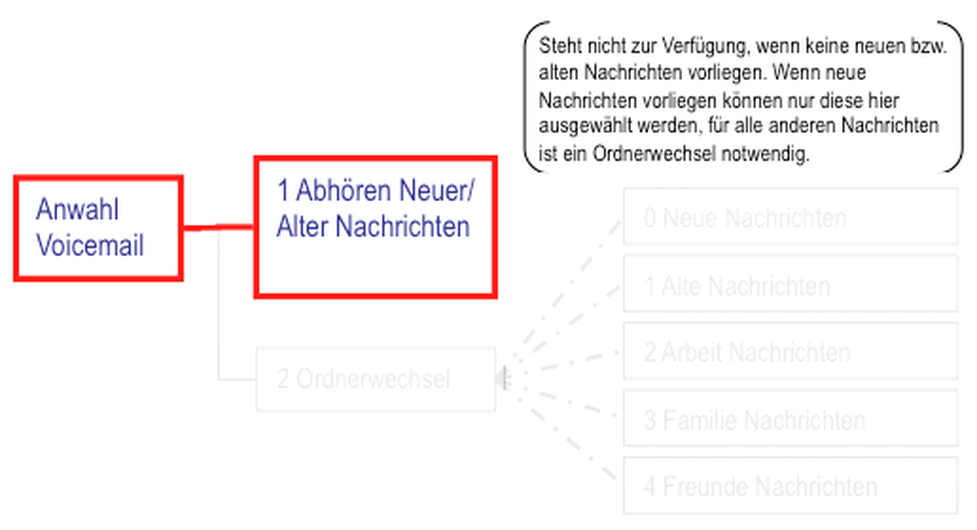
There are two options available for retrieving new or old messages:
1.When a message has been saved in the voice mail system, you can retrieve the new or old message by pressing 1 after accessing the voice mail system and entering your password.
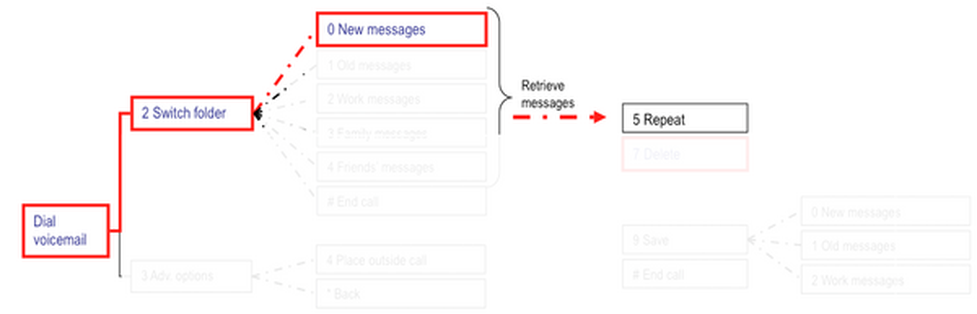
Or proceed as follows:
After accessing the voicemail system, dial 2 to switch folders.
Dial the folder you would like to switch to, e.g. 0 for “New messages” and listen to messages.
You can then dial 7 to delete the message you have just heard.
No content available.
Please follow these instructions, to configure your voice mail via the administration portal:
1.To log onto the administration portal, open the website address https://portal.nfon.net in an Internet browser and enter
your customer number (e.g.: K1234).
the password for the customer number.
2.On the administration portal, please click on the menu item Targets, after selecting or setting up a new phone extension, please click on the Voicemail section.
3.You can now make changes as shown below.
1.Define „your“ password. You need it to access your voice mail box (external or from your desktop device). When you add a new phone extension, the voice mail password is automatically generated, of course you can enter your own password.
2.Enter the email address, where a copy of the voice mail should be send to.
3.CID means CallerID. When activated, the caller-id of the caller is announced, when you pick up the voice mail.
4.When activated, an email is send tot he email address defined in „2“.
5.When activated, the date and time of the message is announced, when you pick up the voicemail.
6.When activated, the voice mail message is deleted from the mail box after being sent to your email address.
7.You can upload the next announcements
Temporary announcements
Busy announcements
Unavailable announcements
Name announcements
Just click on to upload your announcement.
Now a Popup appears, and you can search for your announcement file on your device and define a name for this announcement.
If you already have some uploaded files you can play them by clicking the .
.
If you want to delete an announcement then select the file and push  .
.
All other information concerning the administration portal can be found here.
All announcements can also be created by using the desktop device.
You can only upload files with the next format (max. filesize 7MB!) :
MP3
WAV
Where can you get help?
You can use various sources for help concerning your issues. Please use them in the order suggested here:
On voip-centrex.dfn.de you will find an overview of all documentation, downloads and portals as well as help pages and further information. | |||||||||
The home page of the service site contains various links to manuals, brief instructions, software downloads and templates. Please read these manuals thoroughly. They help you get the most out of your telephone system. | |||||||||
Support hotline for existing customers | Incident report for DFN customers:
| ||||||||
| Important information for the Service Desk
| ||||||||
Support hotline for test customers | As a test customer, the detailed information is available under https://voip-centrex.dfn.de/index.php?id=26621. |